How to set default Warehouses for users
Overview
A Warehouse is a physical or logical grouping of Items, and for each item in a warehouse, the system stores important information about that item in that warehouse.
Almost all item-related operations must be performed with respect to a particular warehouse (e.g. creating a Sales order or performing a Stock revaluation). To avoid mistakes caused by accidentally using the wrong warehouse, Accentis Enterprise allows you to set default warehouses.
Default warehouses can be set for a function so that, when a new record is created, it is automatically populated with the nominated warehouse. These defaults can be defined for both the entire Database, and for a specific user.
Setting default warehouses for a Database
The database defaults are set in the relevant function’s tab in System preferences.
When setting default warehouses for the database, it is important to note that if a specific user has any default warehouses set, these will override the corresponding database defaults for that user.
Accounts receivable
- From the toolbar, navigate to Accounts receivable > Setup > Preferences and select Edit.
- Set the desired warehouse in the relevant field.
- For Sales quotations, Sales orders, and Sales invoices, set the Default sales warehouse field.
- For POS Invoices, set the Default POS warehouse field.
- Select Update to save your changes.
Accounts payable
- From the toolbar, navigate to Accounts payable > Setup > Preferences and select Edit.
- For Purchase orders, set the Default purchasing warehouse field.
- Select Update to save your changes.
Inventory
- From the toolbar, navigate to Inventory > Setup > Preferences and select Edit.
- For Hires, set the Hire warehouse field.
- Select Update to save your changes.
Manufacturing
- From the toolbar, navigate to Manufacturing > Setup > Preferences and select Edit.
- Set the desired warehouse in the relevant field.
- For Component warehouses for Work orders, set the Default Work order component warehouse field.
- For Stock warehouses for Work orders, set the Default Work order stocking warehouse field.
- For Parts warehouses for Repairs, set the Default Repair parts warehouse field.
- Select Update to save your changes.
Setting the default warehouse for a user
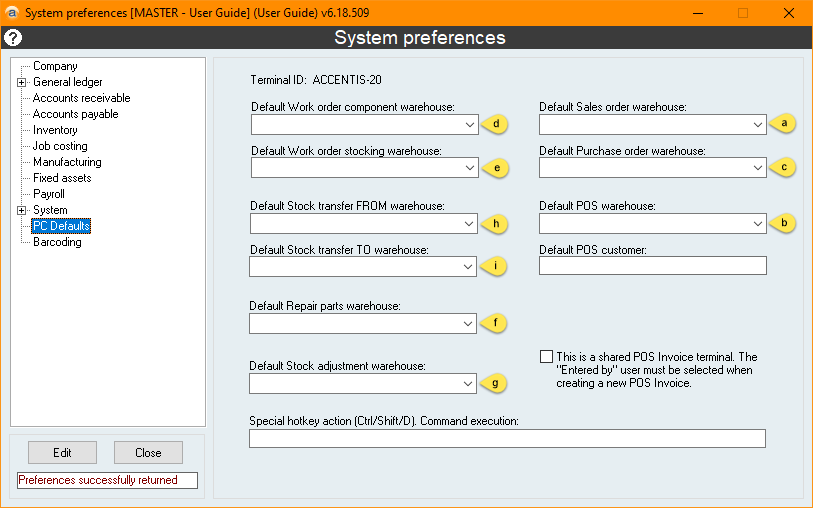
The user defaults are set in the PC Defaults tab in System preferences.
When setting default warehouses for a specific user, it is important to note that the settings are saved for each Windows user, not Accentis Enterprise user.
This means that:
- If a different Accentis Enterprise User is logged in but is using the same Windows account, the default warehouses set here will apply.
- If the same Accentis Enterprise User is logged in but is using a different Windows account (or the same account on another computer), the default warehouses set here will not apply.
- From the toolbar, navigate to System > Preferences > PC Defaults.
- Set the desired warehouse for the relevant field.
- For Sales quotations, Sales orders, and Sales invoices, set the Default sales warehouse field.
- For POS Invoices, set the Default POS warehouse field.
- For Purchase orders, set the Default purchasing warehouse field.
- For Component warehouses for Work orders, set the Default Work order component warehouse field.
- For Stock warehouses for Work orders, set the Default Work order stocking warehouse field.
- For Parts warehouses for Repairs, set the Default Repair parts warehouse field.
- For Stock adjustments, set the Default Stock adjustment warehouse field.
- For the warehouse that stock is taken from for a Stock transfer, set the Default Stock transfer FROM warehouse field.
- For the warehouse that stock is added to for a Stock transfer, set the Default transfer TO warehouse field.
Additional information
- The Hire warehouse can only be set for the Database and not per user.
- The Stock transfer FROM, Stock transfer TO, and Stock adjustment warehouses can only be set per user, not for the Database.
Did you find this article helpful?
If this article is missing information, ambiguous or didn’t give you clear instructions, let us know and we will make it better! Please email us and quote the KB# in the top right of this article to let us know why it didn’t help you out and we will point you in the direction of additional information.
Last edit: 14/11/2025